Computer Basics
Programming tools assume you already know a few things about your computer that most people never had to learn: how files and paths really work, what the "terminal" is, and how the system finds the programs you run. Courses rarely teach these, yet they trip up beginners constantly — a build that fails because of a space in a folder name, a command not found that is really a PATH problem, a tutorial command that does nothing because it was written for a different shell.
This page covers that taken-for-granted layer: what bits and bytes are, the filesystem and paths, the terminal and its shells, and the PATH variable. You do not need to memorise it — skim it now, and come back when something here bites you.
Bits and bytes
Everything a computer stores — numbers, text, images, your program itself — is ultimately just bits. A bit is the smallest possible piece of information: a single 0 or 1, like a switch that is either off or on.
Bits are grouped into bytes of eight. Eight on/off switches can be arranged in 256 different patterns (2 to the power of 8), so one byte can hold any of 256 distinct values — for example a whole number from 0 to 255, or a single text character.
Larger values simply use more bytes:
| Unit | Size | A rough sense of it |
|---|---|---|
| bit | 0 or 1 |
one on/off switch |
| byte | 8 bits | one character, or a number 0–255 |
| kilobyte (kB) | ~1 000 bytes | a page of plain text |
| megabyte (MB) | ~1 000 kB | a photo or a song |
| gigabyte (GB) | ~1 000 MB | a movie; your computer's RAM is measured in these |
This is why every type in C++ has a size. A bool needs just one byte; an int is usually four bytes (32 bits); a double is eight. The size sets a hard limit on what fits: a 32-bit int can count to roughly ±2 billion, and pushing past that makes it overflow — C++ leaves the result undefined, so in practice you get a garbage value, often one that has wrapped around. It is also why a microcontroller with only a few kilobytes of memory (see Arduino vs. Desktop C++) forces a frugality that a desktop with gigabytes does not. The exact type sizes are in Variables and Basic Types.
Kilobyte or kibibyte? (1000 vs. 1024)
Those ~ signs above hide a catch worth getting right. "Kilo" normally means exactly 1000, but computers count in powers of two, and the nearest round binary number to 1000 is 1024 (2 to the power of 10). Two slightly different systems are therefore in use:
| Decimal (SI) | Bytes | Binary (IEC) | Bytes |
|---|---|---|---|
| kilobyte (kB) | 1 000 | kibibyte (KiB) | 1 024 |
| megabyte (MB) | 1 000 000 | mebibyte (MiB) | 1 048 576 |
| gigabyte (GB) | 1 000 000 000 | gibibyte (GiB) | 1 073 741 824 |
The two agree closely at the small end (1 000 vs 1 024) but drift apart as they grow — about 7% by the gigabyte. This is not pedantry; it shows up on your own machine:
- Memory is binary. RAM and a microcontroller's memory are addressed in powers of two, so an "8 GB" stick really holds 8 × 1 073 741 824 bytes, and a chip's "2 KB" of SRAM is 2 × 1024 = 2 048 bytes.
- Storage is sold in decimal. A "1 TB" drive holds 1 000 000 000 000 bytes. Your operating system then measures it in binary but still prints the label "GB", so the same drive shows up as only ~931 GB — the space did not vanish; the two systems just disagree on what "giga" means.
- The unambiguous binary units KiB, MiB, GiB were invented to settle this. They are the technically correct ones, but everyday usage — and Windows — still says "KB/MB/GB" even when it means the binary amount.
Text and ASCII
If a byte is just a number, how does it hold a letter? By agreement: an encoding maps each character to a number. The oldest and most universal is ASCII, which assigns the values 0–127 to the English letters, digits, punctuation, and a few control codes — so 'A' is 65, 'a' is 97, and '0' is 48 — the full ASCII table lists all 128. (It is also why C++'s char is really just a one-byte integer.)
Why only 0–127, when a byte holds up to 255? ASCII was designed as a 7-bit code: it uses only seven of a byte's eight bits, which gives exactly 128 values. That leaves the byte's upper half (128–255) outside ASCII — and for years different systems filled it with their own incompatible characters, one reason the world eventually moved to Unicode.
And 128 characters were never going to be enough for the world's writing: there is no room for æ, ø, å, accented letters, or emoji. Those belong to the far larger Unicode set, normally stored as UTF-8, where one such character takes two or more bytes.
That gap causes a very practical headache. ASCII is the lowest common denominator every tool, compiler, and operating system agrees on; everything beyond it is handled less consistently. A program or build tool that assumes plain ASCII and meets a stray ø may print garbled text (ø) or fail outright. That is exactly why the path rules further down tell you to keep filenames and folders to plain ASCII — and why source code stays in English.
Files, folders, and paths
Your files live in folders (also called directories), which nest inside one another to form a tree. A path is the address of a file or folder: the list of folders you walk through to reach it.
- An absolute path starts from the top (the "root") and is unambiguous:
- Windows:
C:\Users\ada\projects\hello\main.cpp - macOS:
/Users/ada/projects/hello/main.cpp - Linux:
/home/ada/projects/hello/main.cpp
- Windows:
- A relative path is relative to where you currently are — your working directory:
projects/hello/main.cpp, or../otherto go up one level.
Your home directory is your personal folder: C:\Users\<you> on Windows, /Users/<you> on macOS, /home/<you> on Linux. It is often written ~.
The working directory
Your working directory (or "current directory") is the folder a program is "in" right now — the folder that relative paths are measured from. In a terminal, pwd prints it and cd changes it.
It matters for a running program too. When your code opens a file by a plain name — std::ofstream out("report.txt") (you will meet std::ofstream in Chapter 4) — it does not look in your project folder; it looks in the working directory of the running program, and when you launch from an IDE, that is usually not where you expect. CLion runs your program from the build folder (e.g. cmake-build-debug/), so a report.txt your program writes lands there, and a readings.txt it reads must live there too — not beside your source code.
If a program "cannot find" a file that clearly exists, or writes one you then cannot find, the working directory is almost always why. In CLion you can see or change it under Run → Edit Configurations → Working directory.
/ versus \
A classic source of confusion:
- Windows separates folders with a backslash
\. - macOS and Linux use a forward slash
/.
This matters in C++, because inside a string a backslash is an escape character:
std::string bad = "C:\dev\hello";    // WRONG: \d and \h are not valid escapes
std::string a   = "C:\\dev\\hello";  // works: escape each backslash
std::string b   = "C:/dev/hello";    // simpler: forward slashes work on Windows too
Windows file functions happily accept /, so when you must write a path in code, prefer forward slashes and skip the escaping headache. (std::filesystem::path also handles separators for you.)
Keep paths short, simple, and plain
Where you put your projects matters more than beginners expect:
- Avoid long, deeply-nested paths. Windows has historically capped a full path at 260 characters, and many tools still break past that. A project buried under
Documents\University\Semester 1\AIS1003\Assignments\…can hit the wall. Put your code somewhere short, likeC:\dev\. - Avoid spaces.
My Projectsforces you to quote the path on the command line ("My Projects") and some tools mishandle it. Prefermy-projectsormy_projects. - Avoid special and non-English characters. Norwegian
æ,ø,å, accented letters, and symbols like#,&,(confuse compilers, build tools, and scripts in ways that produce baffling errors — they fall outside ASCII. Stick to plain letters, digits,-, and_. - Avoid cloud-synced folders (OneDrive, Dropbox, Google Drive) for code: a build creates thousands of files that sync constantly, and machine-specific build files cause conflicts across computers.
A good home for your coursework: C:\dev\ais1003\ on Windows, or ~/dev/ais1003/ on macOS/Linux.
Show file extensions and hidden files
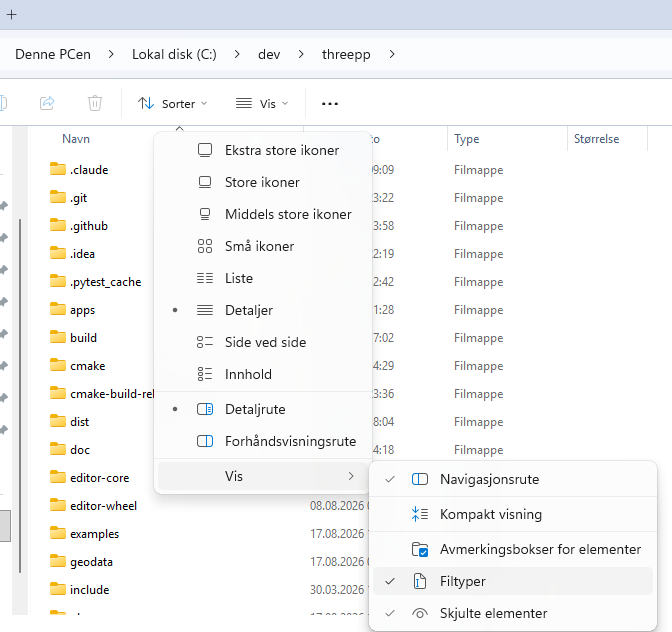
Out of the box, your operating system hides some of this from you — file extensions, and certain files and folders — on the assumption that you are a consumer who would only be confused by them. The moment you start programming, that assumption stops holding: those hidden details are exactly the ones you now need to see. Switching the hiding off is one of the first things to do on a machine you write code on — an engineer sets up the tool to show what is really there.
File name extensions. Here is the classic beginner trap: you tell Notepad to "save as main.cpp", but because Windows hides extensions by default you never notice it actually wrote main.cpp.txt; your build looks for main.cpp, does not find it, and fails before compiling a thing. The letters after the dot — .cpp, .h, .txt, .exe — are how you and your tools tell one kind of file from another, so hiding them also means you cannot tell a report.txt from a report.exe from a folder named report. With extensions shown, the slip is obvious at a glance.
Hidden files. Names beginning with a dot — .git, .gitignore, .idea — are concealed by default, and they are precisely the files you are about to start caring about: the .git folder that holds your entire version history, and the .gitignore next to it that lists what to leave out. When a file you know you created seems to have vanished, it is often merely hidden.
To switch both on — Windows 11: in File Explorer, open the View → Show menu and tick File name extensions and Hidden items (on Windows 10, use the View ribbon tab and the checkboxes of the same name). macOS: Finder hides them too — show extensions under Finder → Settings → Advanced → Show all filename extensions, and toggle hidden files with ⌘ + Shift + . (the period key).
Zipped folders: .zip and .tar.gz
A whole folder — many files and subfolders at once — is often bundled into a single file that is easy to download or send, and usually compressed so it takes less space. This is an archive. You meet them constantly: a library or SDK you download, example code, or an assignment you hand in tends to arrive as one .zip or .tar.gz file.
.zipis the universal format; Windows and macOS open and create it with no extra software..tar.gz(sometimes.tgz) is the same idea from the Unix world, common for source code and Linux tools. The double extension reflects two stacked steps:tarbundles the folder into one file (a "tarball"), thengzipcompresses it.
The trap: an archive is not a folder until you extract it. On Windows, double-clicking a .zip opens a window that looks just like an ordinary folder — but the files are still locked inside. If you build or run a program from that preview, it acts on a hidden temporary copy: your edits vanish and builds fail because the tools cannot find the neighbouring files. Always extract first, then work in the extracted folder — and extract to a short, plain path, for the reasons above.
To extract:
- Windows: right-click the file → Extract All…, then choose a destination.
- macOS: double-click it; the extracted folder appears beside it.
- In a terminal (covered next):
tar -xzf archive.tar.gzextracts a.tar.gzon Windows, macOS, and Linux alike. For a.zip, useExpand-Archive archive.zipin PowerShell, orunzip archive.zipon macOS and Linux.
To go the other way and make an archive — say, to submit your code — right-click the folder (Compress on macOS, Compress to ZIP file on Windows), or run tar -czf myproject.tar.gz myproject/.
The terminal
The terminal is a window where you control the computer by typing commands instead of clicking. You type a command, press Enter, the computer runs it and prints the result, then gives you a fresh prompt for the next command:
Why bother, when there is a perfectly good graphical interface?
- Most developer tools are command-line first —
git, CMake, compilers, package managers. The buttons in your IDE are often just running these commands for you. - It is precise and repeatable. A command is exact; it can be written down, shared, scripted, and re-run identically. "Click here, then there, then…" cannot.
- It shows you what is happening. When something fails, the terminal's output is where the real error message is.
- It works everywhere, including on remote machines and servers that have no graphical interface at all.
You need not abandon the GUI — but a programmer who refuses to touch the terminal is working with one hand tied.
A command is usually a program name, optionally followed by arguments (what to act on) and options or flags (how to act). In:
git is the program, commit a subcommand, -m an option, and "Fix the bug" the argument to that option. Note the quotes: if anything you type contains spaces, wrap it in quotes so it is treated as one item (cd "My Folder").
Shells: PowerShell, cmd, bash, zsh
People say "the terminal" loosely, but there are really two separate things:
- The terminal is the window — the app that shows text and takes your keystrokes.
- The shell is the program running inside it that actually interprets the commands you type.
Several shells exist, and their commands and syntax differ — which is why a command copied from a Linux tutorial may fail on Windows:
| Shell | Where you meet it | Notes |
|---|---|---|
Command Prompt (cmd) |
Windows (old) | Limited; you will rarely choose it on purpose. |
| PowerShell | Windows (modern default) | Capable; the one to use on Windows. |
| bash | Linux, Git Bash, WSL | The classic Unix shell; most online examples assume it. |
| zsh | macOS (modern default) | Bash-like for everyday use. |
A few differences you will actually run into:
| Task | bash / zsh | PowerShell | cmd |
|---|---|---|---|
| List files in a folder | ls |
ls or dir |
dir |
| Show the current folder | pwd |
pwd |
cd |
| Read a variable | $HOME |
$env:USERPROFILE |
%USERPROFILE% |
The practical rule: know which shell you are in, and when you copy a command off the internet, check it matches. On Windows, prefer PowerShell — it is what the terminal built into CLion uses by default. On macOS and Linux, the default shell (zsh or bash) is fine.
PATH: how the computer finds programs
When you type git in a terminal, how does the computer know where git actually lives on disk? It checks an environment variable called PATH — a list of folders to search, in order, for a program with that name.
- If
gitis found in one of those folders, it runs. - If it is not, you get
command not found(or, on Windows,'git' is not recognized…).
So that error almost always means one of two things: the program is not installed, or it is installed but its folder was never added to PATH. Many installers add themselves to PATH automatically; some — and most manual installs — do not, and then you have to add the folder yourself.
PATH is one of several environment variables: named values the system keeps for programs to read. As a beginner you will mostly meet PATH, and mostly when a freshly-installed tool "cannot be found."
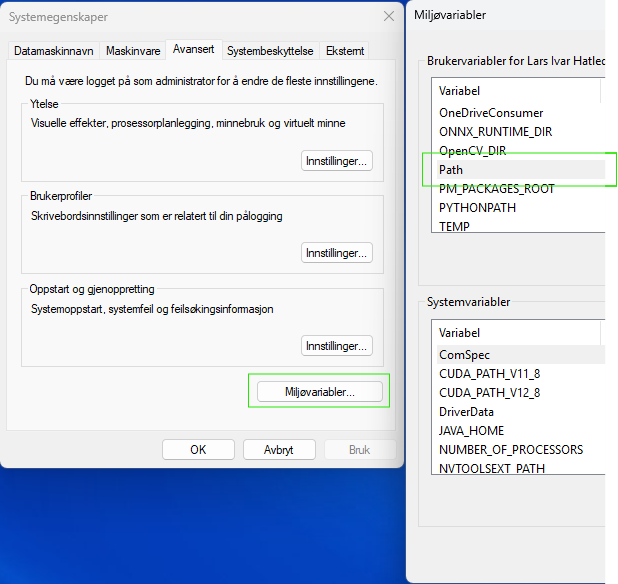
Where to find it on Windows: search the Start menu for environment variables and open Edit the system environment variables; on the Advanced tab, click the Environment Variables… button. Path appears twice — once in the upper list, which holds your own account's variables, and again in the lower one, which holds the whole machine's. Editing your own is enough, and the change reaches terminals you open afterwards, not ones already running.
You will rarely need to edit
PATHby hand for this course — CLion bundles the tools it needs. But when a tutorial says "make sure X is on yourPATH," this is what it means.
Rules of thumb
- Keep projects in a short, plain path near the drive root (
C:\dev\…), not a deep folder full of spaces and Norwegian letters. - Show file extensions and hidden files in your file manager — a programmer needs to see
main.cpp,.git, and.gitignorefor what they are. - An archive (
.zip,.tar.gz) is not a folder until you extract it — unzip to a real folder before building or editing, and never work inside the preview window. - In C++ code, write paths with forward slashes (
"C:/dev") or escape the backslashes ("C:\\dev"). - A program reads and writes relative paths (like
"report.txt") from its working directory — which your IDE often sets to the build folder, not your project folder. - The terminal is worth learning: most tools live there, and it shows you the real errors.
- A shell (PowerShell, bash, zsh, cmd) interprets your commands, and they differ — match copied commands to your shell. On Windows, use PowerShell.
command not foundusually means "not installed" or "not onPATH."